What Is a DMARC Record?
A DMARC record is a TXT record that contains instructions for how an email server should handle an email that fails authentication. Using DMARC records, you can control if email receivers should reject, quarantine, or do nothing with a suspicious email.
It’s important to create DMARC record because it helps servers distinguish legitimate emails from fake ones. As a result, it minimizes cyber threats like phishing, email spoofing, and CEO fraud. This is why we strongly recommend creating a DMARC record to ensure better email security.
DMARC Record Example
A typical DMARC record contains at least three important components (or tag-value pairs). Consider this sample DMARC record:
v=DMARC1; p=reject; rua=mailto:dmarc@yourdomain.com
Here, we have three tags: v, p, and rua which have the values DMARC1, none, and mailto:dmarc@yourdomain.com.
The v tag specifies the version of DMARC, the p tag is the policy (or the action to perform if email fails DMARC checks), and the rua tag is the email address where you want to receive DMARC aggregate reports at.
In the example above, the p tag has the value reject. In other words, the policy defined here is to reject a message when a message fails authentication. Here’s what the 3 different DMARC policies mean:
- None: No action is taken for messages failing DMARC, but aggregate reports will still be sent to you so you can monitor what’s happening to your emails.
- Quarantine: Messages failing DMARC checks are put in the junk folder of the receivers.
- Reject: All email messages failing authentication are completely rejected, never reaching your recipient.
Create Your New DMARC TXT Record
We’ve got 2 different methods to share in this section: copying and pasting a DMARC record, which works with any host, or generating a record in Cloudflare.
Option 1: Copy and Paste Our DMARC Record (Any Host)
It’s easy to add a DMARC record manually using our example. There’s no need to use a DMARC generator.
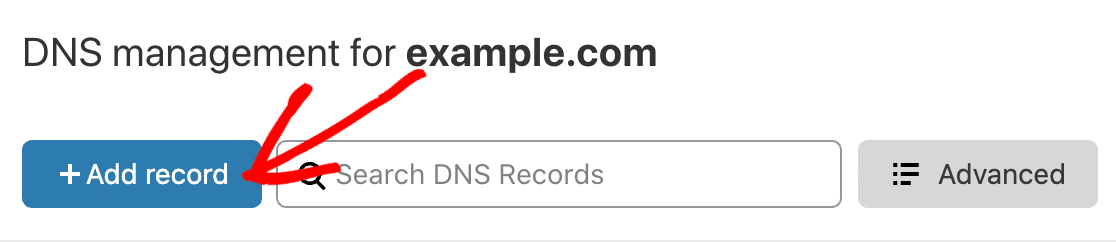
On your registrar’s DNS record screen, click Add record to create a DMARC record. We’ll use Cloudflare in this example.
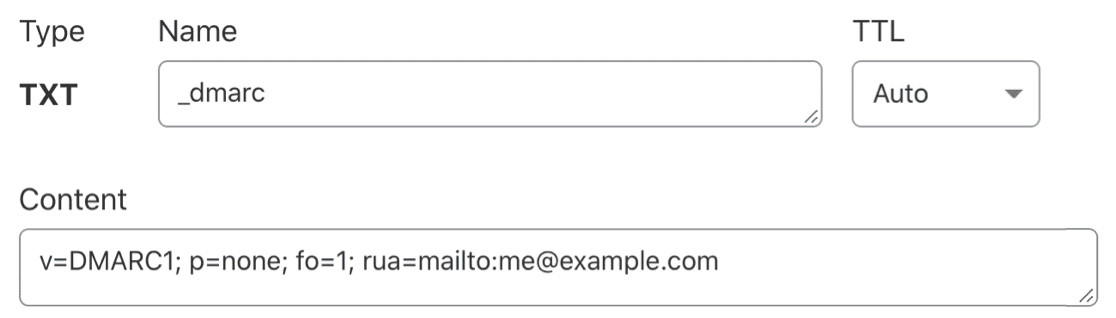
A DMARC record is a TXT record starting with _dmarc. So in the Type dropdown, select TXT.

In the Name field, type _dmarc. with the period (dot) at the end. Some hosts don’t need the period, so they’ll remove it or show an error. In that case, you can safely use _dmarc it without the period.
In the large field in the DNS record, paste in this DMARC record example.
v=DMARC1; p=none; fo=1; rua=mailto:me@example.com
Here’s what this rule does:
- We’re using
p=nonebecause it’s the least restrictive setting. You’ll still get email reports if there’s an issue with your DNS, but it’s unlikely to affect your own emails from being delivered. If you start to get suspicious DMARC reports, you could change this part of the rule top=quarantine. - Be sure to change the
rua=mailto:address. It should ideally be set to the email address that your mailer service provides in its documentation. If it doesn’t provide one, you can use an email address at your own domain. - If the authentication method (DKIM or SPF) is unaligned with your DMARC record, the
fo=1rule will generate forensic reports containing details of the event. - In basic terms, the TTL (Time to Live) setting is like an expiration date for your DNS. We recommend leaving the TTL setting on Auto, which is typically 4 hours. The setting isn’t crucial, so you can safely select 24 hours or 14400 if that’s the only option you have.
Some providers may ask for an alignment rule. It’s OK to exclude that since it’s not required for your DMARC text record to work.
So after pasting in the rule, here’s our finished DMARC record:
Save your new DMARC rule to add the new record to your DNS.